Showing posts with label blocks. Show all posts

Friday, September 25, 2020

New block categories


The next time staff go to add a fee to a borrower’s account the list of blocks will look a bit different. I removed the “Lost on Dynix” block, because it hasn’t been used since 2003, and it’s no longer relevant. I added two new fee blocks: print and repcard. The menu now looks like this:


Staff can use the print block type for fees associated with printing and/or faxing materials. Because this block type will already declare that it’s related to printing, I was thinking staff would only have to record information about number of pages printed in the comment, but how you want your staff to record any comments is up to you. 

Staff can use the repcard as a block type for fees associated with issuing replacement cards. 

The screenshot below shows what the blocks look like when they’re added to a borrower’s account.  


9/2020


Thursday, April 28, 2016

New ATTN block when you need to see customer about their acct

A new ATTN block has been added to Horizon that can be applied to a borrower's account when staff needs to talk to them regarding their account (i.e. DVD case turned in without the DVD; library card left at desk, etc.) It prevents the customer from checking out at self check. The language on the block will say "Problem with account, contact library staff for specifics." Make sure the note you include with the block describes the issue so any staff member can resolve the question/problem.


Many branches have been using the Address Correction Request (ACR) block for this purpose. Bad idea. Using the ACR block stops any future printed or email notices from being generated for that customer for holds, overdues and lost items, and therefore should not be used for anything other than an address correction.  Click here for more information. 

Friday, April 8, 2016

Proper Use of Address Correction Request Block

The Address Correction Request block should only be used when the customer's address is incorrect and needs to be updated. 

Do NOT use the 'acr' block for any other reason. 

Why? Because this block stops any future printed or email notices from being generated for that customer for holds, overdues and lost items. Any unreturned items will go into Lost status 60 days after they were due and the customer’s account will be charged accordingly. But they won't ever get a notice telling them that. 

If the customer has phone notices, they will still receive notices for holds and overdue items. But if those overdue items go to lost, they will not receive the final overdue or lost notices because those are always sent by US Mail regardless of the customer's notice setting.

Monday, August 31, 2009

Group and Sort Blocks

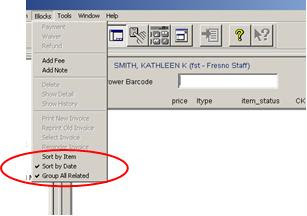
Horizon provides several display options for viewing block information that you may find helpful when reviewing a borrower’s account. For example, you can choose the order in which you want blocks to display on any blocks views. You can sort blocks by date or by item. If a borrower has incurred more than one block for a single item, you can group all of the blocks for that item together. However, regardless of which sort option you choose, Horizon always displays non-item blocks first (i.e. address correction). The block display option(s) selected will remain in effect even if you log off, change users or change locations.

Sorting BlocksBy default, Horizon sorts blocks by the date the block was incurred, starting with the most recent date. If you sort by item, fines are sorted by fine amount, with the largest fine being listed first. To sort blocks by date, choose Blocks, Sort by Date. To sort blocks by item, choose Blocks, Sort by Item.

Grouping Multiple Blocks for a Single Item
By default, all blocks for a single item are displayed independently. You can choose to group multiple blocks for a single item together under a summary block. To group and display multiple blocks for a single item, choose Blocks, Group All Related.


Note: Multi-line messages on a borrower’s account can appear jumbled if you have the “Group All Related” option checked. In the Horizon menu bar, go to “Blocks” and uncheck “Group All Related”. Now the lines of text in the message should appear in the correct order.


rev. 2/2018

Monday, June 15, 2009

Hold Notification Block Won't Go Away

There are times when Horizon does not automatically remove the Hold Notification Block even after the borrower checks out the item or the hold expires and the item is returned to the owning branch. You can try to delete the block manually. However, if that still does not clear the block, report the borrower’s name and barcode, and the item’s title and barcode to the Jurisdiction System Administrator so it can be removed by a system-level process.

rev. 2/2018

Friday, May 29, 2009

When Blocks Get Deleted from History

There are 79 different types of blocks in Horizon that could appear on a patron's account. Each specific type of block has a set period of time that block will remain in the history of the patron's account. These standards are set by System policy. The block is automatically deleted from the patron's history after that specified time has elapsed. There are too many block types to list all of the history periods here. 

However, it may be helpful to know that any blocks related to money will remain on the patron's account for 1460 days (4 years). Other block history settings vary between 60 - 365 days.

NEVER delete blocks from history - especially those related to fines/fees blocks. Those need to remain on the borrower's account for the full 4 years in case there's a dispute of the charges or other research regarding their payment method, location, etc. 


rev. 2/2018

Friday, May 1, 2009

Place Manual Block for Damaged Items

Horizon will not automatically place a block on the borrower’s account - even if you use the CKI - Damaged Mode to check it in. You need to manually place the block of their record if that information is still available.

> Check in the item using the CKI – Damaged Mode.
> Open the borrower’s account (if known).
> Select Blocks – Add Fee – Damage. Enter the amount of the fee and any comments regarding the item and/or charges.

rev. 1/2018