Showing posts with label upgrade. Show all posts

Monday, October 24, 2016

Horizon 7.5.4 Bug - Wrong Name on Payment Receipt

Update: A temporary fix to the 'crashing' side of the problem was implemented 11/1/16. The name of the borrower on the payment receipt has been replaced with the libary card barcode of the borrower. It only prints the last few digits of the barcode to help protect customers' accounts from being used for other services. But it should be enough to verify the account name and barcode together if they present the receipt later with questions.

Note: placing the barcode on the receipt did not correct the other part of the bug. It could still print the barcode for the borrower that's currently on the item record. But the fine payment is truly credited to the correct borrower.


UPDATE 2/2018:

Another issue is when checking in items and trying to print a return receipt in Horizon is that this will crash Horizon.  This is only when printing a return receipt. 

The only way to 'correct' the issue of wrong name printing on cki or payment receipts is to remove the name from payment or cki receipts altogether.

You can aso avoid the cki receipt issue by checking in and issuing a return receipt through CircIt.

-----------------------------------------------------------------------------

When we upgraded to Horizon 7.5.4 in October, 2016, a bug was introduced into the system. The payment receipt prints the name and/or barcode number for the borrower that’s currently on the item record (i.e. has the paid for item checked out) - not the borrower who's paid the fine. Don't worry though. It’s only cosmetic. The fine payment is truly credited to the correct borrower.

In this example, Julianne Starner paid fines on her account, but Lupe Vasquez's name appears on the payment receipt. That's because Lupe has the Deadwood item checked out.

Another symptom of this problem was that Horizon would crash during the payment transaction. The payment was still made to the correct account, but staff had to log back into Horizon.

We will probably have to live with this until the next upgrade. Simply cross out the wrong name and write in the correct borrower's name and reassure/show the customer their fines were indeed paid.


rev. 4/2018

Wednesday, April 3, 2013

Circulation Procedures When Horizon is Down

Here's a summary of circulation procedures for those times when Horizon is down.

What are the policies to CHECK OUT materials when Horizon is down?
  • Customers must have their library card to check out materials. No other form of ID is required.
  • 5 item limit
  • No renewals
  • Do NOT check out any non-circulating items.
What about HOLDS?
  • No new holds can be placed by customers or staff until Horizon is up.
  • No holds can be filled so you do not need to run a holds list during the down time.
  • Check out holds already on the holds shelf using the above check out standards.
  • If a hold has expired, leave it on the shelf until we come back up.
  • When we come back up, check each item on the holds shelf to see if it has expired and treat it accordingly.
Can I issue new LIBRARY CARDS during this downtime?
Continue to accept library card applications during the downtime. However, no new or replacement library cards can actually be issued during this time.* Save the completed applications in a file at the branch and input them into Horizon when we come back up. Please do not send any of these accumulated applications to Central for input. 

Do I have to CHECK OUT items using paper and pencil?
If Horizon is down for an extended period of time, it’s easier to scan the borrower’s library card number and item barcodes into a Word or Excel document than hand writing them. Then when Horizon comes back up, you can copy and paste the information into Horizon quicker and avoid problems with data entry errors and poor handwriting. Please follow the instructions at: FCPL On The Horizon: Word

Can I CHECK IN materials while we are down?
No, do NOT check in any materials until you are told by Tech Support that it is okay to begin using Horizon. No returned materials will be checked in during this time.

If I can’t CHECK IN materials, what should I do with them?
  • Date your book trucks as they are filled so you know which ones to check in first when we come back up.
  • Store the materials away from public view since you cannot allow another customer to check out a returned item they might spot behind the counter.
When can I start using Horizon for CHECK OUT and CHECK IN?
Do not begin using Horizon until your branch has been contacted by Tech Support.

What if material becomes overdue while it’s waiting to be checked in?
When we begin using Horizon, all materials should be checked in as “Exempt Fines” for a number of days. This should give us a safe margin of error and ensure our customers are not negatively impacted.

Can we continue to accept interlibrary loan requests (ILLs)?
No. We cannot add any ILLs to Horizon while it is down.

Can I accept payment of fines during the downtime?
No. We cannot accept payment of any fines. We will not be able to look at the customer’s record to calculate the total fine. Neither will we be able to clear it from their record. The online payment system will also be down because it requires the customer to enter their library card barcode.

Will notices go out while we are down?
No notices will be sent out (mail, email or phone) during the days we are down.

What do we do with the shipments we receive during the downtime?
You will not be able to check in any of these items so simply store them until we come back up.


When we come back up, does it matter if we do CKOs or CKIs first? 
YES...do all your CKOs FIRST. Then process your CKIs. If you fail to process items in that order, you risk the chance of checking out an item after the customer has already returned it. 


rev. 5/2018

Thursday, September 24, 2009

Using MS Word For Checkouts When Horizon Is Down

If Horizon is down for an extended period of time, it’s easier to scan the borrower’s library card number and item barcodes into a Word or Excel document than hand writing them. Then when Horizon comes back up, you can copy and paste the information into Horizon quicker and avoid problems with data entry errors and poor handwriting.

  1. Open Word, Excel, WordPad. This method works for any type of word processing or spreadsheet program.
  2. Save the file somewhere (USB, J: drive, K: drive, etc.) You might want to name the file “check outs MMM DD YYYY”. For example “check outs Sept 25 2009”.
  3. When the patron comes up to the desk, scan/wand their library card into the file. The computer will do an automatic hard return so that the cursor is on the next line down. Note: You are NOT accessing the patron’s record in any way. This is just the same as writing the patron’s barcode on a piece of paper.
  4. Enter the patron’s name. Upper and lower case doesn’t matter. Press return. This step is not absolutely required, but acts as a double check when the information is eventually entered into Horizon.
  5. Begin wanding the patron’s items. The computer will automatically put a hard return after each barcode so that it moves down to the next line.
  6. Press Enter a couple of times after each patron so the entries are separated making it easier to read later.
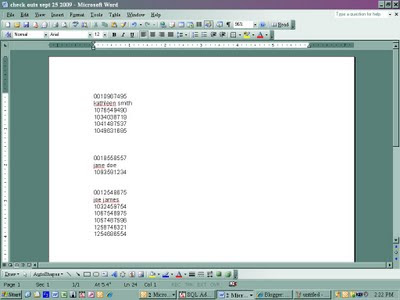
  7. SAVE the file after EACH and EVERY patron. Otherwise a lot of information could be lost if something goes awry with the computer or the file. You file will look like the picture shown below.
  8. When Horizon comes back up, open the check out file and Horizon. Align the windows side by side. Then copy and paste the barcodes from the file into Horizon one by one. This is much faster than printing out the file and rekeying everything in.
  9. When you’re done, you can either delete the file or hold on to it for a while as a back up.