Showing posts with label barcode. Show all posts

Wednesday, April 6, 2016

No L in Front of Lost Library Card Barcode

Do NOT put an 'L' in the front of a lost library card Barcode field. This may have been the practice at one time, but it's not any longer. Continuing to do so will negatively affect other Horizon processes.


Note: Normally, the Barcode and Barcode ID fields should always match. However in the rare case when a borrower declares their card lost, but does not want another one issued, it is okay to edit the Barcode ID field to have an L in front. This will prevent the lost card from being used as a secondary look-up point for some processes. 


Rev. 5/2018

Tuesday, January 4, 2011

Search by Partial Item Barcode

If you only have a portion of the item barcode, you may still be able to find the item in Horzion. This might happen more often with a DVD or CD that has been separated from its case and only has the last 4 digits of the barcode written on the disk. The following steps assume this scenario. You can adapt them as needed for your situation.

  • Open an item barcode search window in Horizon.
  • The asterisk (*) serves as a wildcard symbol in the search. For example, if the last 4 digits are 7743, enter the search as *7743. This will return any items that end in 7743 regardless of whether they are 10 or 14 digit barcodes.
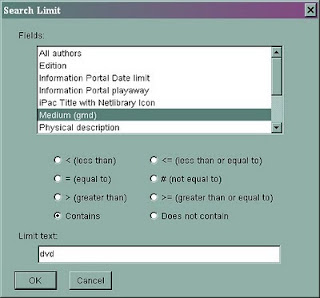
  • If the search returns too many items, click the Limit button.
  • Hightlight the field Medium (gmd).*
  • With "contains" selected, enter text into the Limit Text field. Typically DVD or CD narrows it down to just that format. Since the title is usually included on the disk itself, you can pinpoint the record from there.

*gmd is a cataloging acronym for "general material designation" or a fancy way of saying "format".

Monday, August 31, 2009

1000000000 Barcode Phenomenon

Sometimes the barcode of 1000000000 will get assigned to an item as it is linked. The staff person linking the item fails to enter a complete barcode and Horizon fills in the missing digits automatically. Horizon knows every item barcode starts with a 1 and has 10 digits. So if I’m linking an item and leave the barcode field blank then press Enter, Horizon reads the Enter as a “0”, adds a 1 in front and fills in the remaining digits with 0s. The only way to avoid this happening is to watch the screen while you are linking items to make sure the correct barcode is assigned to the item.

This same type of phenomenon can occur anytime a partial barcode is entered while linking an item, as well as checking an item in or out. For example, if a 2 is entered, the resulting barcode is 1000000002; if 107 is entered, the resulting barcode is 1000000107; etc.

At Check Out

If a 1000000000 barcode exists (or a variation), it is then possible this item will appear on a patron’s record during check out –if the staff person presses Enter in the barcode field of the CKO window or enters a partial barcode that matches an existing barcode in the database.
If this happens to you, simply check in the 1000000000 item to remove it from the patron’s account.


At Check In
It could also happen at Check In. If you hit Enter at Check In without entering a barcode, a transit slip could be generated that sends the item in hand to whatever branch owns the 1000000000 item. This means the item in hand is *not* checked in. In fact, it's probably still checked out to the patron. Pay attention to the routing slip. If it lists the 1000000000 barcode, don't put it in the shipment. Rescan the item.

Whenever you notice a bad barcode, notify the branch that owns that item. They should pull the item and correct the barcode in Horizon. If you are not sure who to contact at that branch, email Kathleen Smith and she'll take care of it. That will clear up the problem until another item is accidentally assigned an erroneous barcode number. Again, the best way to reduce the probability of this happening is to watch the screen while you are linking items.

rev. 2/2018