Showing posts with label My List. Show all posts

Friday, April 13, 2018

My List feature in the Enterprise catalog


The My List feature in Enterprise is designed so the user can create a temporary list of titles from their search results. Users can view the list, place holds on items in the list, sort it, add or remove items from the list, move items to a different list, or email the list. However, if they want to save the list for future reference, they must first login into their account. Otherwise, the titles will only be saved to My List for that particular Enterprise session.
  • In Enterprise, click Login in the top right hand corner of the screen.
  • Enter your library card barcode & PIN#. Click the Login button.
  • Search the catalog.
  • Click the Select an Action drop down next to an item you want saved. Choose Add to My Lists. A pop up screen will appear letting you the name of the item and that it was added to Temporary List.  To search for more items, close the pop up window.
  • To review the list, click My Lists at the top right of the screen.
To save a Temporary List, follow these steps:
  • Make sure you are logged in to your account.
  • Open My Lists. Your Temporary List will be listed.  
  • Click the Select an Action drop down and choose Save Temporary List.
  • In the pop up box name your list and click Save.
  • Your saved list will appear in the left hand column with the number of items in the list in parentheses.
There are other things you may do with items in your saved lists.  These include placing holds, deleting specific items, emailing, printing, moving items from one list to another, and copying the item to another list.  These functions are all done from the Select an Action dropdown.


4/2018

Wednesday, October 20, 2010

My List Problems and High Number of Titles

Beginning in June 2010, we began receiving reports from customers regarding problems using the My List feature in ValleyCat. Their My List account indicates they had an excessively high number of titles (usually 200+), but no titles are actually displayed. We've seen as high as 415 titles as shown below. If this happens, the customer is unable to see any of the titles previously in My List or add any new ones.


You may also see this error regarding a problem with XSLT: 


We do not know what causes this to happen. The phenomenon has been reported to System and they are working with SirsiDynix to determine the cause/solution. Until the problem is resolved, here are a few things to keep in mind and tell the customer.

  • Report the problem to Tech Support including the customer's name and library card number.
  • In order to correct the problem, the customer's corrupted My List must be deleted. All titles that were on the list will be lost. There is no way to recover the titles.
  • When multiple family members use the same computer to check My List, and one person has problems, the problem will spread to all the My List accounts of the people using that computer. Therefore, if one family member has My List problems, others should refrain from accessing their own My List accounts from that computer until the problem is fixed by the Library.
  • This problem seems to afflict users who keep a very large number of titles in My List (i.e. 100+). It is advisable to use the Other Lists feature in My List to create smaller sub-lists.
Click the "My List" label below to see other postings with tips and tricks for using My List.

Monday, November 30, 2009

My List Titles Not Saving

Recently a patron reported that titles added to their My List were not being saved to their account. Here's a few tips for making sure this doesn't happen.

1. Be sure to log into your library account before adding items to My List. Otherwise, the titles will only be added to My List for that one session.

2. Just as important, remember to log out of your library account after adding titles to My List. It seems that if you forget to log out and the session times out on its own, the recently added titles will not be saved to My List.

Note: once titles have been 'lost' or 'removed' from My List, there's no way to get them back. They are gone forever. If your customer is concerned with losing their list of titles, suggest they email the list to themselves occasionally. See the other My List postings for more information on My List features.

Monday, May 4, 2009

"My List" Feature in ValleyCat

The My List feature in ValleyCat is designed so the user can create a temporary list of titles from their search results. Users can view the list, sort it, add or remove items from the list or email the list. They can also create up to 15 sublists. However, if they want to save them for future reference, they must first login into their account. Otherwise, the titles will only be saved to My List for that particular ValleyCat session.
  • In ValleyCat, click Login in the top right hand corner of the screen.
  • Enter your library card barcode & PIN#. Click the Login button.
  • Search the catalog.
  • Click the Add to My List button next to an item you want saved. The number total items saved in the list appears in the top right hand corner of the screen next to My List.
  • To review the list, click My List.
Other features include:
  • It appears that items will remain in My List indefinitely, *as long as a user is adding items to their list*. Otherwise, items will disappear from My List after 120 days. So the key to maintaining the list long term is to actively use it. It's not a bad idea for users to email themselves the list(s) every once in a while if they want a permanent record.
  • The main "My List" list can contain up to 100 titles. When the user reaches that limit the following message will display: "Your Book Bag is now full. You can add additional items only after you have removed one or more items from the bookbag from the MyList display."
  • Users can create up to 15 sublists within My List. Each sublist can contain up to 100 titles. So technically, a user could have up to 1,600 titles saved (100 in My List and 100 each in 15 sublists.) The user might want to create sublists to categorize their titles (i.e. cookbooks, mysteries, travel, etc.) Here’s how:
    • While logged into My List, place a check mark next to the titles you wanted moved to a new list.
    • Click the Move To drop down list. Select [New List] or an already created sublist.
    • Once My List itself has 100 items, the only way to add additional titles is to move items from My List to the selected sublist (new or existing).
  • Use Other Lists to move from one list to another.
  • Use Manage Lists to rename or delete lists.
  • Use Remove to delete items from My List.
  • Request items directly from My List.
  • Email the list. Formats include HTML, plain text, delimited (to upload into a spreadsheet or database) as well as in MLA or Chicago citation styles (which would be helpful for students.) Note: only the list being viewed will be emailed. If the user has multiple lists, they would need to email each list separately. You do not need to check mark the items first. All the items on the list are emailed automatically.
Remember, if you don't log into your account, any items sent to My List will only be saved for that session and you will not be able to see items previously saved to My List.

rev. 2/2018

Wednesday, April 15, 2009

Email from Enterprise Catalog/ValleyCat and SPAM Blockers

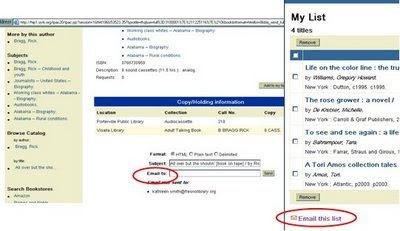
In both the Enterprise catalog and ValleyCat, patrons can email themselves title records as well as items in "My List" via ValleyCat. These emails come from no-reply@sjvls.org. If a patron complains they did not receive the titles or lists they emailed to themselves, their email service may have placed them in their junk/bulk mail folder instead of their in box. Ask the patron to adjust their spam or junk mail settings so that email from no-reply@sjvls.org is allowed to come into their inbox.


rev. 7/2017