Wednesday, May 29, 2013

Fast Add Instructions and Exceptions

The Fast Add function allows staff to check out an item to a borrower even if that item barcode/title cannot be found in Horizon. The Fast Add function allows you to create short temporary bibliographic record. There are two Fast Add options: "Bib & Item" and "Find Bib". You should always try "Find Bib" first to see if there's an existing Bib Record already in Horizon. 

How-to Guide: Checking Out Fast Adds Doc


How-to Guide: Checking in Fast Adds Doc


How to Fast Add

1. In CKO, pull up the borrower’s record.
2. Check out the item or select Item – New Item from the menu bar. The Item Not Found screen appears as shown here.
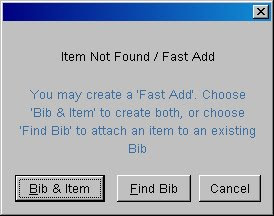


3. Click Find Bib option first

  • Search for the title. If you find it, highlight the record. 
  • Select Show Detail button. 
  • On the Menu go to Edit - Send To then Edit: Fast:Add.
  • Fill out the remaining information as follows:
    • Location: defaults to your location
    • Collection code: FA
    • Call#: leave blank
    • Barcode of item as appropriate
    • Call Type: ddc
    • Item Type: as appropriate
4. If there is no existing Bib Record, select Bib & Item and enter the following information in the Fast Add window:
  • Author: LAST, FIRST (IN ALL CAPS)
  • ISBN: as appropriate
  • Title: IN ALL CAPS
  • Location: defaults to your location
  • Collection code: FA
  • Call#: leave blank
  • Barcode of item as appropriate
  • Call Type: ddc
  • Item Type: as appropriate
5. Click OK. The item is now checked out to the borrower.

When a Fast Add Item Is Returned
When the item is returned and checked in, the following message appears:
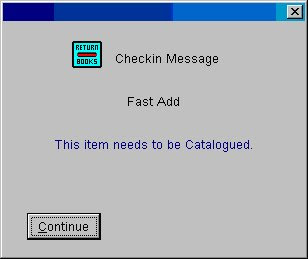
Click Continue. The item is now checked in with the status of "In Cataloging".

Then simply fill out the Catalog Correction Form on OZ. 

Two Exceptions
There are two types of materials that are exceptions to the above Fast Add instructions:

1. Inter Library Loans: Fast Add records for interlibrary loan materials (itype = fil) are created by Central Circulation. When these materials are returned, these temporary bib and item records are automatically deleted from Horizon since the item will be returned to the lending library.
2. Government Documents: Many government documents are not cataloged. For this type of item, use the collection code of FDXEFDX – Federal or FDXESTX – State as appropriate in the Fast Add window. When these materials are returned, these temporary bib and item records are automatically deleted from Horizon. The item can simply be returned to the collection.


rev. 2/2018

Sunday, April 28, 2013

Items Stuck on the Expired Holds List

Holds that don't disappear from your expired holds list are the result of items on the hold shelf which have expired and then were checked out before being checked in. To prevent this from happening in the future, if an item on the hold shelf has expired, CHECK IT IN BEFORE YOU CHECK IT OUT to anyone.

For those items that keep showing up on the  expired holds list, but are not on the shelf - check the item in DAMAGED, then put it in TRACE status. This will keep your expired holds list current.


Tuesday, April 9, 2013

End Session Button - Turning It On & Off

As part of the Horizon 7.5.2 upgrade in April 2013, you can now enable or disable the End Session button on the Checkout window. The End Session button is used when you want to open the Session Payment window after checkout if the borrower owes any fees.

To Enable/Disable the End Session Button for your PC:
  1. In Horizon, open a Checkout window.
  2. From the menu bar, select CKO. Then click the End Session menu option to make the button appear on the Checkout window. You'll see a check mark next to it. 
  3. Uncheck that menu option to make the button disappear.


Thursday, April 4, 2013

Phone Numbers with Extensions

Some borrowers have a phone number with an extension. Here's the data entry rules for that situation:
  • Enter the phone number as 000-000-0000 x000  (Example: 559-123-4568 x910)
  • Because telemessaging cannot call a phone number that has an extension, set the Phone Type to one of the "no telemessaging" types