Monday, March 7, 2011

End Session Button

In the upgrade to Horizon 7.5.1 in March 2011, a new button appeared at the bottom of the borrower checkout screen: End Session. It is like the Payment button on the Blocks screen.

Click the button and the following Session Payment window appears. Make the desired payment/waiver to the account. At the end of the transaction, the borrower's record will automatically be cleared.

If the End Session button was selected inadvertently, click Close.

If you do not watch the screen while performing other tasks, you could accidentally activate the End Session button and even the Payment button and make a payment on the account.

Friday, January 21, 2011

New and Now Browsing Collection

What is the New and Now collection? New and Now is a browsing collection that consists of high demand materials. Here's the Horizon/ValleyCat related information to this special collection:
  • CKO time: 3 weeks
  • No renewals
  • No holds allowed
  • Collection code: FXXENNC - New and Now
  • Itype: FFI
  • The items are not visible to customers in ValleyCat. However they are visible to staff in Horizon.
  • Pilot locations: Central, Clovis, Politi, Kerman, Kingsburg, and Auberry.

For complete information on the New and Now collection go to http://fcplbooknotes.blogspot.com/2011/01/new-now-collection.html

Wednesday, January 5, 2011

How To Export Horizon Data To Excel

In some cases, data can be exported from Horizon into another program. The following shows how to export data from Item Group Editor or the Redistribution report.

Part I: Export the List
  • Pull up a list of items in Horizon.
  • Highlight the items to export. Ctrl + A highlights all the items at once.
  • Menu Bar --> File --> Export Record(s).
  • Enter a file name --> Leave File Type blank --> Save
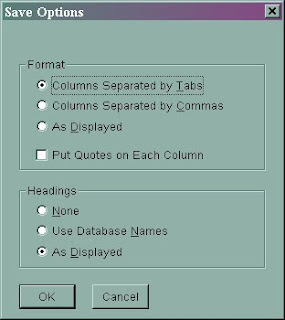
  • Select "Columns Separated by Tabs" --> OK. The list has been exported and saved to the named file.


Part II: Configure for Excel* 
  • Open the file with Excel using your preferred method.
  • Change “Files of type” to All Files --> highlight the file --> Open
  • Leave “Delimited” checked on this window --> Next


  • Leave Tab selected --> Next
  • Leave all defaults unchanged --> Finish


  • The file is still in a tab delimited format. To save the data as an Excel file and preserve changes, go to File - Save As. Under "Save as type", select Microsoft Office Excel Workbook.
*The method is similar for opening the file in Microsoft Word, Wordpad, etc.

Tuesday, January 4, 2011

Search by Partial Item Barcode

If you only have a portion of the item barcode, you may still be able to find the item in Horzion. This might happen more often with a DVD or CD that has been separated from its case and only has the last 4 digits of the barcode written on the disk. The following steps assume this scenario. You can adapt them as needed for your situation.

  • Open an item barcode search window in Horizon.
  • The asterisk (*) serves as a wildcard symbol in the search. For example, if the last 4 digits are 7743, enter the search as *7743. This will return any items that end in 7743 regardless of whether they are 10 or 14 digit barcodes.
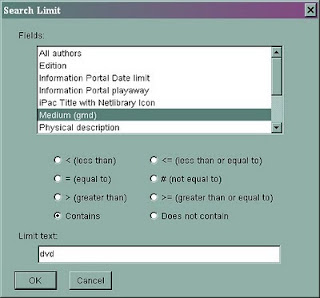
  • If the search returns too many items, click the Limit button.
  • Hightlight the field Medium (gmd).*
  • With "contains" selected, enter text into the Limit Text field. Typically DVD or CD narrows it down to just that format. Since the title is usually included on the disk itself, you can pinpoint the record from there.

*gmd is a cataloging acronym for "general material designation" or a fancy way of saying "format".