There are 79 different types of blocks in Horizon that could appear on a patron's account. Each specific type of block has a set period of time that block will remain in the history of the patron's account. These standards are set by System policy. The block is automatically deleted from the patron's history after that specified time has elapsed. There are too many block types to list all of the history periods here.
However, it may be helpful to know that any blocks related to money will remain on the patron's account for 1460 days (4 years). Other block history settings vary between 60 - 365 days.
NEVER delete blocks from history - especially those related to fines/fees blocks. Those need to remain on the borrower's account for the full 4 years in case there's a dispute of the charges or other research regarding their payment method, location, etc.
rev. 2/2018

On The Horizon is an FAQ publication for the staff of the Fresno County Public Library on the use of Horizon and ValleyCat.
Friday, May 29, 2009
Tuesday, May 26, 2009
Request vs. Hold Check Out Override
Every once in a while a patron brings an item to the circ desk and when you check it out to them, one of these two windows appears:
"Item Requested By" Override - YES
This means a borrower somewhere in the System has simply requested this item. Your borrower with the item in hand takes precedence over someone else in a remote location. Click “Yes” to check out the item to the borrower standing in front of you. The other borrower requesting the item will be assigned another copy. Note: The self check system follows this rule and will allow the patron to check out the item.
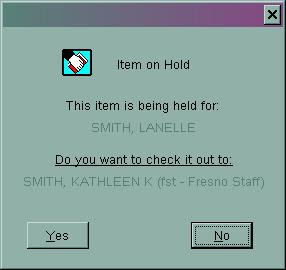
 "This item is being held for" Override - NO (in most cases)
This means the item is already on the hold shelf for the first borrower listed on the message. The hold is linked to that borrower's library card, not the library card of the person standing in front of you. In most cases, click “No”. Of course, there could be exceptions to this rule. For example, the patron whose book is on the hold shelf may have authorized this other patron to pick up their items via a note in their library account. Note: The self check system follows this rule and prevents this patron from checking out the item and directs them to see staff for assistance.
"Item Requested By" Override - YES
This means a borrower somewhere in the System has simply requested this item. Your borrower with the item in hand takes precedence over someone else in a remote location. Click “Yes” to check out the item to the borrower standing in front of you. The other borrower requesting the item will be assigned another copy. Note: The self check system follows this rule and will allow the patron to check out the item.
"This item is being held for" Override - NO (in most cases)This means the item is already on the hold shelf for the first borrower listed on the message. The hold is linked to that borrower's library card, not the library card of the person standing in front of you. In most cases, click “No”. Of course, there could be exceptions to this rule. For example, the patron whose book is on the hold shelf may have authorized this other patron to pick up their items via a note in their library account. Note: The self check system follows this rule and prevents this patron from checking out the item and directs them to see staff for assistance.
rev. 2/2018

Wednesday, May 20, 2009
Status Definitions
BINDERY (Status B)
Status applied to an item by Support Services staff when they send it to an outside vendor to bind/rebind. Note: this status will not change until the item is checked in by branch staff. So a item with this status could also be in the delivery van on its way to your branch, in your back room waiting to be checked in, or on the shelf if staff failed to check it in.
CLAIMED RETURNED (Status C) - DO NOT USE Use of Claimed Returned by staff was discontinued November 2007. Claimed Returned is the status set by staff when a borrower claims an overdue item has been returned. A block is placed on the borrower’s account. Items in Claimed Returned status more than 1 year will be changed to missing automatically by Horizon. When the item goes to Missing, the claimed return block is removed from the patron’s record and they are not charged for the item.
DAMAGED (Status DMG)
Status applied by staff manually or by using Damaged CKI Mode to designate the condition of an item. This status does not allow new holds. However, if the request already exists and then the item is put in Damaged status, the hold will not be filled by that copy.
DISPLAY CASE (Status DC)
Status applied by staff to designate when an item is being used in a display and not on the shelf. This status allows new holds.
IN CATALOGING (Status T)
Status used to designate that an item has been sent to the Cataloging department for special attention. Items with this status will not accept holds. This status is not used by Fresno when processing new items. NOTE: do not confuse this status for transit. Manually changing an item's status to t -- in cataloging will not put that item in transit.
IN PROCESSING (Status PR)
This status is used for items which have not gone through the normal ordering process (i.e. gift books). Items with this status are being processed (cataloged, linked, barcoded, stamped and finished) in Support Services. Items with this status will accept holds.
ITEM BEING HELD (Status H)
Status set when the pickup location checks in an item to fill a hold. This is the status of items on the hold shelf, but not expired. This status is borrower specific and item specific.
ITEM HOLD EXPIRED (Status E)
Status set when the item on the hold shelf has expired.
ITEM MISSING (Status M)
Missing is the status applied to items which have been in Trace status for 3 months, or Lost status for 12 months. Items in Missing status for 6 months will be changed to Withdrawn status by Support Services on the first of every month and then deleted completely from Horizon on the first Sunday of each month by System staff. Do NOT apply this status to an item manually. If you cannot find an item, put it in TRACE status.
LIBRARIAN REVIEW (Status LIBR)
Status to designate that the item is being reviewed to see if we want to keep it in the collection. In the past, it allowed holds to be placed on the item. However, after the November 2009 upgrade, it no longer allows holds. So it is okay to apply the LIBR status or WEEDED (Status W) for this purpose. Neither status allows holds.
LOST (Status L)
Items are given the Lost status one of two ways:
1. Borrower themselves claims to have lost the item and staff manually sets the item as lost by placing a lost block on the patron’s account.
2. Horizon automatically makes an item lost after the Final Overdue Notice is sent. A Lost block is automatically placed on the patron’s account.
An item with the Lost status retains the link between the borrower and the item. So if the lost item is returned, Horizon will automatically credit the patron’s account for the cost of the item when it is checked in. However it will not remove the processing fee. Staff must do that.
Lost items will automatically be changed to Missing status by Horizon after 12 months. Once the lost item has been changed to Missing, the patron’s account still retains the lost blocks and charges. However, the link between the item and the borrower is broken. Therefore, if the missing item is returned, Horizon will not automatically credit the patron’s account for the charges when it’s checked in.
MENDING (Status ME)
Status applied to staff to designate when an item has been set aside/sent to Support Services for repair.
MISSING (Status M) - see Item Missing
MISSING INVENTORY (Status MI) - DO NOT USE
Status applied to items that are not found after using the Horizon inventory module. Do NOT apply this status to an item manually. If you cannot find an item, put it in TRACE status.
NEWLY ACQUIRED (Status N)
This status is set when the item has been invoiced and received in Horizon by Acquisitions. Ninety-five percent of the time it means the item is in Support Services and being processed (cataloged, linked, barcoded, stamped and finished). The exception to this rule is for prepaid items which are invoiced and received before they even arrive at the library. Items with this status will accept holds. Note: Newly Acquired items that have a negative barcode or a barcode that begins with "acq" are most likely being cataloged. If they have a standard barcode, they have already been linked and are in the finishing stages of processing (i.e. labels, covers, etc.)
Note: this status will not change until the item is checked in. So a newly acquired item could also be in the delivery van on its way to your branch, in your back room waiting to be checked in, or on the shelf if staff failed to check it in.
ON ORDER (Status R)
This status is set when an item is ordered by Acquisitions. Items with this status will accept holds.
PATRON HOLD SHELF (Status PHS)
Staff can use this status to manually place an item on the hold shelf, e.g. someone calls in and says they are coming to look at a book. It is only item specific, not borrower specific.
RELOCATION IN PROGRESS (XR)
This status is related to floating. This status is applied to items that float to indicate they are being moved from one location to another to balance inventory of the floating collection. Items in XR status more than 2 months will be changed to Missing by Support Services on the first of every month.
TRACE (Status TRACE)
Trace is the status applied to items which cannot be found on the shelf. Staff manually apply this status to an item. Items in Trace status more than 3 months will be changed to Missing by Support Services on the first of every month. This is item-specific status only. No corresponding blocks appear on a borrower’s record.
TRANSIT (Status TR)
Status set when an item is moving from one location to another (usually back to the owning library), but is not in transit to fill a hold. Items In Transit status more than 1 year will be deleted from Horizon by System monthly.
TRANSIT HOLD / TRANSIT REQUEST (Status TH)
Status set when a location fills a request and the item is moving from the owning library to the pick up location specified by the patron. The term "Transit Request" also appears in some areas of Horizon. It means the same as Transit Hold. Items in Transit Hold status more than 1 year will be deleted from Horizon by System monthly.
WITHDRAWN (Status WD)
Status staff should assign to items that are absolutely and positively being removed from the collection. Items set to Withdrawn are permanently deleted from Horizon at the first of every month by System staff. Once an item is in Withdrawn status, no new holds may be placed on it.
rev. 2/2018
Status applied to an item by Support Services staff when they send it to an outside vendor to bind/rebind. Note: this status will not change until the item is checked in by branch staff. So a item with this status could also be in the delivery van on its way to your branch, in your back room waiting to be checked in, or on the shelf if staff failed to check it in.
CLAIMED RETURNED (Status C) - DO NOT USE Use of Claimed Returned by staff was discontinued November 2007. Claimed Returned is the status set by staff when a borrower claims an overdue item has been returned. A block is placed on the borrower’s account. Items in Claimed Returned status more than 1 year will be changed to missing automatically by Horizon. When the item goes to Missing, the claimed return block is removed from the patron’s record and they are not charged for the item.
DAMAGED (Status DMG)
Status applied by staff manually or by using Damaged CKI Mode to designate the condition of an item. This status does not allow new holds. However, if the request already exists and then the item is put in Damaged status, the hold will not be filled by that copy.
DISPLAY CASE (Status DC)
Status applied by staff to designate when an item is being used in a display and not on the shelf. This status allows new holds.
IN CATALOGING (Status T)
Status used to designate that an item has been sent to the Cataloging department for special attention. Items with this status will not accept holds. This status is not used by Fresno when processing new items. NOTE: do not confuse this status for transit. Manually changing an item's status to t -- in cataloging will not put that item in transit.
IN PROCESSING (Status PR)
This status is used for items which have not gone through the normal ordering process (i.e. gift books). Items with this status are being processed (cataloged, linked, barcoded, stamped and finished) in Support Services. Items with this status will accept holds.
ITEM BEING HELD (Status H)
Status set when the pickup location checks in an item to fill a hold. This is the status of items on the hold shelf, but not expired. This status is borrower specific and item specific.
ITEM HOLD EXPIRED (Status E)
Status set when the item on the hold shelf has expired.
ITEM MISSING (Status M)
Missing is the status applied to items which have been in Trace status for 3 months, or Lost status for 12 months. Items in Missing status for 6 months will be changed to Withdrawn status by Support Services on the first of every month and then deleted completely from Horizon on the first Sunday of each month by System staff. Do NOT apply this status to an item manually. If you cannot find an item, put it in TRACE status.
LIBRARIAN REVIEW (Status LIBR)
Status to designate that the item is being reviewed to see if we want to keep it in the collection. In the past, it allowed holds to be placed on the item. However, after the November 2009 upgrade, it no longer allows holds. So it is okay to apply the LIBR status or WEEDED (Status W) for this purpose. Neither status allows holds.
LOST (Status L)
Items are given the Lost status one of two ways:
1. Borrower themselves claims to have lost the item and staff manually sets the item as lost by placing a lost block on the patron’s account.
2. Horizon automatically makes an item lost after the Final Overdue Notice is sent. A Lost block is automatically placed on the patron’s account.
An item with the Lost status retains the link between the borrower and the item. So if the lost item is returned, Horizon will automatically credit the patron’s account for the cost of the item when it is checked in. However it will not remove the processing fee. Staff must do that.
Lost items will automatically be changed to Missing status by Horizon after 12 months. Once the lost item has been changed to Missing, the patron’s account still retains the lost blocks and charges. However, the link between the item and the borrower is broken. Therefore, if the missing item is returned, Horizon will not automatically credit the patron’s account for the charges when it’s checked in.
MENDING (Status ME)
Status applied to staff to designate when an item has been set aside/sent to Support Services for repair.
MISSING (Status M) - see Item Missing
MISSING INVENTORY (Status MI) - DO NOT USE
Status applied to items that are not found after using the Horizon inventory module. Do NOT apply this status to an item manually. If you cannot find an item, put it in TRACE status.
NEWLY ACQUIRED (Status N)
This status is set when the item has been invoiced and received in Horizon by Acquisitions. Ninety-five percent of the time it means the item is in Support Services and being processed (cataloged, linked, barcoded, stamped and finished). The exception to this rule is for prepaid items which are invoiced and received before they even arrive at the library. Items with this status will accept holds. Note: Newly Acquired items that have a negative barcode or a barcode that begins with "acq" are most likely being cataloged. If they have a standard barcode, they have already been linked and are in the finishing stages of processing (i.e. labels, covers, etc.)
Note: this status will not change until the item is checked in. So a newly acquired item could also be in the delivery van on its way to your branch, in your back room waiting to be checked in, or on the shelf if staff failed to check it in.
ON ORDER (Status R)
This status is set when an item is ordered by Acquisitions. Items with this status will accept holds.
PATRON HOLD SHELF (Status PHS)
Staff can use this status to manually place an item on the hold shelf, e.g. someone calls in and says they are coming to look at a book. It is only item specific, not borrower specific.
RELOCATION IN PROGRESS (XR)
This status is related to floating. This status is applied to items that float to indicate they are being moved from one location to another to balance inventory of the floating collection. Items in XR status more than 2 months will be changed to Missing by Support Services on the first of every month.
TRACE (Status TRACE)
Trace is the status applied to items which cannot be found on the shelf. Staff manually apply this status to an item. Items in Trace status more than 3 months will be changed to Missing by Support Services on the first of every month. This is item-specific status only. No corresponding blocks appear on a borrower’s record.
TRANSIT (Status TR)
Status set when an item is moving from one location to another (usually back to the owning library), but is not in transit to fill a hold. Items In Transit status more than 1 year will be deleted from Horizon by System monthly.
TRANSIT HOLD / TRANSIT REQUEST (Status TH)
Status set when a location fills a request and the item is moving from the owning library to the pick up location specified by the patron. The term "Transit Request" also appears in some areas of Horizon. It means the same as Transit Hold. Items in Transit Hold status more than 1 year will be deleted from Horizon by System monthly.
WEEDED (Status W)
Apply the Weeded status to any item that needs further review as to whether it should remain in the collection or not. Once an item is in Weeded status, no new holds may be placed on it. If the reviewer then decides to remove the item permanently, it should be changed to Withdrawn status. However, if the reviewer decides to keep the item, check it in to clear the Weeded status and put it back into circulation.WITHDRAWN (Status WD)
Status staff should assign to items that are absolutely and positively being removed from the collection. Items set to Withdrawn are permanently deleted from Horizon at the first of every month by System staff. Once an item is in Withdrawn status, no new holds may be placed on it.
rev. 2/2018
Monday, May 4, 2009
"My List" Feature in ValleyCat
The My List feature in ValleyCat is designed so the user can create a temporary list of titles from their search results. Users can view the list, sort it, add or remove items from the list or email the list. They can also create up to 15 sublists. However, if they want to save them for future reference, they must first login into their account. Otherwise, the titles will only be saved to My List for that particular ValleyCat session.
rev. 2/2018
- In ValleyCat, click Login in the top right hand corner of the screen.
- Enter your library card barcode & PIN#. Click the Login button.
- Search the catalog.
- Click the Add to My List button next to an item you want saved. The number total items saved in the list appears in the top right hand corner of the screen next to My List.
- To review the list, click My List.
- It appears that items will remain in My List indefinitely, *as long as a user is adding items to their list*. Otherwise, items will disappear from My List after 120 days. So the key to maintaining the list long term is to actively use it. It's not a bad idea for users to email themselves the list(s) every once in a while if they want a permanent record.
- The main "My List" list can contain up to 100 titles. When the user reaches that limit the following message will display: "Your Book Bag is now full. You can add additional items only after you have removed one or more items from the bookbag from the MyList display."
- Users can create up to 15 sublists within My List. Each sublist can contain up to 100 titles. So technically, a user could have up to 1,600 titles saved (100 in My List and 100 each in 15 sublists.) The user might want to create sublists to categorize their titles (i.e. cookbooks, mysteries, travel, etc.) Here’s how:
- While logged into My List, place a check mark next to the titles you wanted moved to a new list.
- Click the Move To drop down list. Select [New List] or an already created sublist.
- Once My List itself has 100 items, the only way to add additional titles is to move items from My List to the selected sublist (new or existing).
- Use Other Lists to move from one list to another.
- Use Manage Lists to rename or delete lists.
- Use Remove to delete items from My List.
- Request items directly from My List.
- Email the list. Formats include HTML, plain text, delimited (to upload into a spreadsheet or database) as well as in MLA or Chicago citation styles (which would be helpful for students.) Note: only the list being viewed will be emailed. If the user has multiple lists, they would need to email each list separately. You do not need to check mark the items first. All the items on the list are emailed automatically.
rev. 2/2018
Subscribe to:
Posts (Atom)