If a customer tries to log into SmartPay with a lost library card, they will get the message: User type is blocked...(and their btype). It does not specifically state the card is lost. But SmartPay does not allow them any further access.

On The Horizon is an FAQ publication for the staff of the Fresno County Public Library on the use of Horizon and ValleyCat.
Tuesday, June 18, 2013
Monday, June 10, 2013
Hyperlinks on Email Notices
A customer recently asked, "Why isn't there a link to the overdue title on my email notice?" Here's why.
- There's a very limited amount of space to add the lengthy link to ValleyCat.
- They could look at the list of titles they have out, but could not renew any that are overdue.
You might ask, "Why then do Preoverdue Notices contain a link to the general "My Account"
page?" Here's why:
- They are generated by a third party program that's a bit more flexible than Horizon.
- The link to "My Account" is much shorter.
- Since the item is not yet overdue, the customer can still renew their item(s).
It would be great if we could configure email notices to be more user friendly, but that's not possible with our current system. But at least now you know the reasons.

Wednesday, May 29, 2013
Fast Add Instructions and Exceptions
The Fast Add function allows staff to check out an item to a borrower even if that item barcode/title cannot be found in Horizon. The Fast Add function allows you to create short temporary bibliographic record. There are two Fast Add options: "Bib & Item" and "Find Bib". You should always try "Find Bib" first to see if there's an existing Bib Record already in Horizon.
How-to Guide: Checking Out Fast Adds Doc
How-to Guide: Checking in Fast Adds Doc
How to Fast Add
1. In CKO, pull up the borrower’s record.
2. Check out the item or select Item – New Item from the menu bar. The Item Not Found screen appears as shown here.
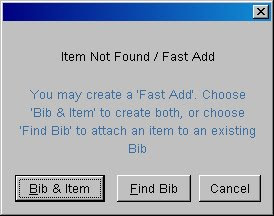
3. Click Find Bib option first.
When a Fast Add Item Is Returned
When the item is returned and checked in, the following message appears:
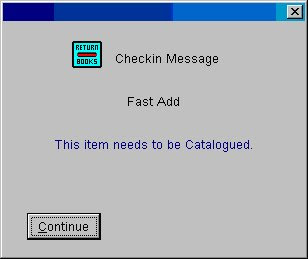 Click Continue. The item is now checked in with the status of "In Cataloging".
Then simply fill out the Catalog Correction Form on OZ.
Two Exceptions
There are two types of materials that are exceptions to the above Fast Add instructions:
1. Inter Library Loans: Fast Add records for interlibrary loan materials (itype = fil) are created by Central Circulation. When these materials are returned, these temporary bib and item records are automatically deleted from Horizon since the item will be returned to the lending library.
2. Government Documents: Many government documents are not cataloged. For this type of item, use the collection code of FDXEFDX – Federal or FDXESTX – State as appropriate in the Fast Add window. When these materials are returned, these temporary bib and item records are automatically deleted from Horizon. The item can simply be returned to the collection.
rev. 2/2018
How-to Guide: Checking Out Fast Adds Doc
How-to Guide: Checking in Fast Adds Doc
How to Fast Add
1. In CKO, pull up the borrower’s record.
2. Check out the item or select Item – New Item from the menu bar. The Item Not Found screen appears as shown here.
3. Click Find Bib option first.
- Search for the title. If you find it, highlight the record.
- Select Show Detail button.
- On the Menu go to Edit - Send To then Edit: Fast:Add.
- Fill out the remaining information as follows:
- Location: defaults to your location
- Collection code: FA
- Call#: leave blank
- Barcode of item as appropriate
- Call Type: ddc
- Item Type: as appropriate
- Author: LAST, FIRST (IN ALL CAPS)
- ISBN: as appropriate
- Title: IN ALL CAPS
- Location: defaults to your location
- Collection code: FA
- Call#: leave blank
- Barcode of item as appropriate
- Call Type: ddc
- Item Type: as appropriate
When a Fast Add Item Is Returned
When the item is returned and checked in, the following message appears:
Click Continue. The item is now checked in with the status of "In Cataloging". Then simply fill out the Catalog Correction Form on OZ.
Two Exceptions
There are two types of materials that are exceptions to the above Fast Add instructions:
1. Inter Library Loans: Fast Add records for interlibrary loan materials (itype = fil) are created by Central Circulation. When these materials are returned, these temporary bib and item records are automatically deleted from Horizon since the item will be returned to the lending library.
2. Government Documents: Many government documents are not cataloged. For this type of item, use the collection code of FDXEFDX – Federal or FDXESTX – State as appropriate in the Fast Add window. When these materials are returned, these temporary bib and item records are automatically deleted from Horizon. The item can simply be returned to the collection.
rev. 2/2018
Sunday, April 28, 2013
Items Stuck on the Expired Holds List
Holds that don't disappear from your expired holds list are the result of items on the hold shelf which have expired and then were checked out before being checked in. To prevent this from happening in the future, if an item on the hold shelf has expired, CHECK IT IN BEFORE YOU CHECK IT OUT to anyone.
For those items that keep showing up on the expired holds list, but are not on the shelf - check the item in DAMAGED, then put it in TRACE status. This will keep your expired holds list current.
For those items that keep showing up on the expired holds list, but are not on the shelf - check the item in DAMAGED, then put it in TRACE status. This will keep your expired holds list current.
Subscribe to:
Posts (Atom)