The Library's policy is to charge a processing fee for lost materials to recover the staff time it takes to replace the item. As of July 2017, this fee is set at $7.00 per item.
If an item's status changes to Lost, a series of related blocks will eventually appear on the account:
1. Lost Block - Cost of the item
When a Lost item is returned, the Lost Block is automatically resolved and the cost of the item is removed from the borrower's account.
2. Lost Processing Fee Block - $7.00
The Lost Processing Fee is not removed automatically. Staff must waive the fee manually. The borrower would then only owe the maximum overdue fine.
3. Fine Block - This block only appears on the account when the Lost item is returned. It will be set to the maximum amount allowed depending on itype/jursidiction. FCPL's maximum overdue fine as of July 2018 is $4.00 per item. Other jurisdictions' items can have a maximum overdue charge ranging from $2.50 up to the cost of the item. Local policy prevails for collecting overdue fines. Fresno staff may adjust the maximum fine to $4.00 at their discretion. If the Fine Block does not appear, waive the Lost Processing Fee down to $4.
There are several exceptions to the above:
> Kern County does not charge a Lost Processing Fee. Therefore, if a Kern County item is lost and returned, no Lost Processing Fee Block will be on the account - and so there's nothing to waive.
> The Fine Block will not appear on the account when a lost item is returned in some cases.
1) After 12 months, Lost status items will change to Missing status. If a missing item is returned, the item no longer contains the original due date, so it cannot calculate the fine (or)
2) The item was manually set to Lost status by staff and then returned prior to the due date (or)
3) The account is exempt from fines (FST - Staff, FVOL - Volunteers and FHB - Home Service). (Note: these account types will eventually be charged for the Lost item including the Lost Processing Fee, but the Fine Block will never appear on their account if the item is returned.)
*See the other Lost Processing Fee post to understand how the Lost Processing Fee is calculated.
rev. August 2017

On The Horizon is an FAQ publication for the staff of the Fresno County Public Library on the use of Horizon and ValleyCat.
Tuesday, December 15, 2009
Monday, November 30, 2009
My List Titles Not Saving
Recently a patron reported that titles added to their My List were not being saved to their account. Here's a few tips for making sure this doesn't happen.
1. Be sure to log into your library account before adding items to My List. Otherwise, the titles will only be added to My List for that one session.
2. Just as important, remember to log out of your library account after adding titles to My List. It seems that if you forget to log out and the session times out on its own, the recently added titles will not be saved to My List.
Note: once titles have been 'lost' or 'removed' from My List, there's no way to get them back. They are gone forever. If your customer is concerned with losing their list of titles, suggest they email the list to themselves occasionally. See the other My List postings for more information on My List features.
1. Be sure to log into your library account before adding items to My List. Otherwise, the titles will only be added to My List for that one session.
2. Just as important, remember to log out of your library account after adding titles to My List. It seems that if you forget to log out and the session times out on its own, the recently added titles will not be saved to My List.
Note: once titles have been 'lost' or 'removed' from My List, there's no way to get them back. They are gone forever. If your customer is concerned with losing their list of titles, suggest they email the list to themselves occasionally. See the other My List postings for more information on My List features.

Tuesday, November 10, 2009
Standard Font Setting in Horizon
In Horizon, every user has the ability to set the font type and font size for the screen. However unless you use the recommended standard font, some Horizon buttons and options may fail to appear correctly on the screen. Follow the instructions below to avoid this problem.
From the Horizon log in screen enter your username and password, then select the Options button. The following window appears. The recommended standard is Arial Unicode MS with a 10, 11 or 12 font size. Be sure to check mark the "Make Default" box to save these settings.

From the Horizon log in screen enter your username and password, then select the Options button. The following window appears. The recommended standard is Arial Unicode MS with a 10, 11 or 12 font size. Be sure to check mark the "Make Default" box to save these settings.
Thursday, September 24, 2009
Using MS Word For Checkouts When Horizon Is Down
If Horizon is down for an extended period of time, it’s easier to scan the borrower’s library card number and item barcodes into a Word or Excel document than hand writing them. Then when Horizon comes back up, you can copy and paste the information into Horizon quicker and avoid problems with data entry errors and poor handwriting. 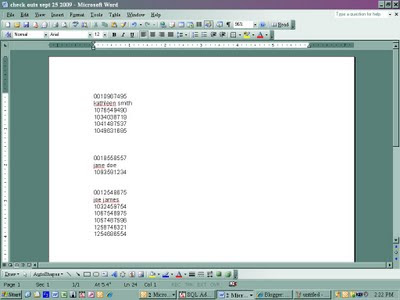
- Open Word, Excel, WordPad. This method works for any type of word processing or spreadsheet program.
- Save the file somewhere (USB, J: drive, K: drive, etc.) You might want to name the file “check outs MMM DD YYYY”. For example “check outs Sept 25 2009”.
- When the patron comes up to the desk, scan/wand their library card into the file. The computer will do an automatic hard return so that the cursor is on the next line down. Note: You are NOT accessing the patron’s record in any way. This is just the same as writing the patron’s barcode on a piece of paper.
- Enter the patron’s name. Upper and lower case doesn’t matter. Press return. This step is not absolutely required, but acts as a double check when the information is eventually entered into Horizon.
- Begin wanding the patron’s items. The computer will automatically put a hard return after each barcode so that it moves down to the next line.
- Press Enter a couple of times after each patron so the entries are separated making it easier to read later.
- SAVE the file after EACH and EVERY patron. Otherwise a lot of information could be lost if something goes awry with the computer or the file. You file will look like the picture shown below.
- When Horizon comes back up, open the check out file and Horizon. Align the windows side by side. Then copy and paste the barcodes from the file into Horizon one by one. This is much faster than printing out the file and rekeying everything in.
- When you’re done, you can either delete the file or hold on to it for a while as a back up.
Subscribe to:
Posts (Atom)