Recently a patron reported that titles added to their My List were not being saved to their account. Here's a few tips for making sure this doesn't happen.
1. Be sure to log into your library account before adding items to My List. Otherwise, the titles will only be added to My List for that one session.
2. Just as important, remember to log out of your library account after adding titles to My List. It seems that if you forget to log out and the session times out on its own, the recently added titles will not be saved to My List.
Note: once titles have been 'lost' or 'removed' from My List, there's no way to get them back. They are gone forever. If your customer is concerned with losing their list of titles, suggest they email the list to themselves occasionally. See the other My List postings for more information on My List features.

On The Horizon is an FAQ publication for the staff of the Fresno County Public Library on the use of Horizon and ValleyCat.
Monday, November 30, 2009
Tuesday, November 10, 2009
Standard Font Setting in Horizon
In Horizon, every user has the ability to set the font type and font size for the screen. However unless you use the recommended standard font, some Horizon buttons and options may fail to appear correctly on the screen. Follow the instructions below to avoid this problem.
From the Horizon log in screen enter your username and password, then select the Options button. The following window appears. The recommended standard is Arial Unicode MS with a 10, 11 or 12 font size. Be sure to check mark the "Make Default" box to save these settings.

From the Horizon log in screen enter your username and password, then select the Options button. The following window appears. The recommended standard is Arial Unicode MS with a 10, 11 or 12 font size. Be sure to check mark the "Make Default" box to save these settings.

Thursday, September 24, 2009
Using MS Word For Checkouts When Horizon Is Down
If Horizon is down for an extended period of time, it’s easier to scan the borrower’s library card number and item barcodes into a Word or Excel document than hand writing them. Then when Horizon comes back up, you can copy and paste the information into Horizon quicker and avoid problems with data entry errors and poor handwriting. 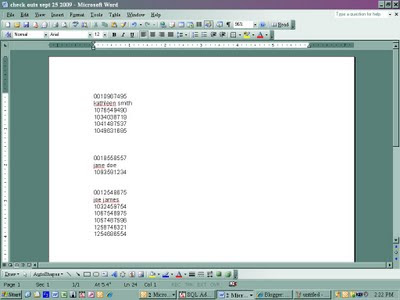
- Open Word, Excel, WordPad. This method works for any type of word processing or spreadsheet program.
- Save the file somewhere (USB, J: drive, K: drive, etc.) You might want to name the file “check outs MMM DD YYYY”. For example “check outs Sept 25 2009”.
- When the patron comes up to the desk, scan/wand their library card into the file. The computer will do an automatic hard return so that the cursor is on the next line down. Note: You are NOT accessing the patron’s record in any way. This is just the same as writing the patron’s barcode on a piece of paper.
- Enter the patron’s name. Upper and lower case doesn’t matter. Press return. This step is not absolutely required, but acts as a double check when the information is eventually entered into Horizon.
- Begin wanding the patron’s items. The computer will automatically put a hard return after each barcode so that it moves down to the next line.
- Press Enter a couple of times after each patron so the entries are separated making it easier to read later.
- SAVE the file after EACH and EVERY patron. Otherwise a lot of information could be lost if something goes awry with the computer or the file. You file will look like the picture shown below.
- When Horizon comes back up, open the check out file and Horizon. Align the windows side by side. Then copy and paste the barcodes from the file into Horizon one by one. This is much faster than printing out the file and rekeying everything in.
- When you’re done, you can either delete the file or hold on to it for a while as a back up.
Wednesday, September 23, 2009
New Method for Processing Magazines
Effective September 22, 2009, the following procedure will be used at all FCPL branches for adding new magazines to Horizon EXCEPT Fresno Central. They will continue to use the Horizon Serials Module to check in all their issues since they maintain a much longer run of past issues.
Back issues will be kept for the following time periods:
Back issues will be kept for the following time periods:
- Bi-monthly (every two months) – 1 year
- Monthly – 6 months
- Bi-weekly (every two weeks) – 3 months
- Weekly – 3 months
- Quarterly – 1 year
Physical Processing
Ownership stamping – stamp with the branch stamp
Horizon Processing
Horizon Processing
- New issue arrives – give it a new barcode (i.e. Car and Driver August 2009). Pull the oldest issue (i.e. Car and Driver July 2008).
- Open the cataloging folder. Select Item Barcode Lookup. Enter the barcode on that oldest issue.
- Select the Edit command button at the bottom of the screen.
- Replace the barcode of the old issue with a new barcode affixed to the newly received magazine. Enter the date and year of the new issue in the copy statement field.
- Save and close.
- Physically discard the old issue.

Subscribe to:
Posts (Atom)