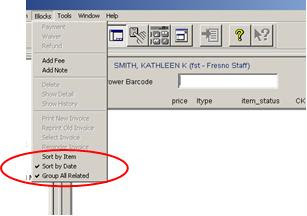
Horizon provides several display options for viewing block information that you may find helpful when reviewing a borrower’s account. For example, you can choose the order in which you want blocks to display on any blocks views. You can sort blocks by date or by item. If a borrower has incurred more than one block for a single item, you can group all of the blocks for that item together. However, regardless of which sort option you choose, Horizon always displays non-item blocks first (i.e. address correction). The block display option(s) selected will remain in effect even if you log off, change users or change locations.
Sorting BlocksBy default, Horizon sorts blocks by the date the block was incurred, starting with the most recent date. If you sort by item, fines are sorted by fine amount, with the largest fine being listed first. To sort blocks by date, choose Blocks, Sort by Date. To sort blocks by item, choose Blocks, Sort by Item.
Grouping Multiple Blocks for a Single Item
By default, all blocks for a single item are displayed independently. You can choose to group multiple blocks for a single item together under a summary block. To group and display multiple blocks for a single item, choose Blocks, Group All Related.
Note: Multi-line messages on a borrower’s account can appear jumbled if you have the “Group All Related” option checked. In the Horizon menu bar, go to “Blocks” and uncheck “Group All Related”. Now the lines of text in the message should appear in the correct order.
rev. 2/2018
The automated TeleMessaging phone system calls customers when they have overdue items or holds is available in both English and Spanish. Customers can also call the system to review what items they have checked out and renew items. The “Language” field in the borrower record determines the language TeleMessaging uses when it calls a patron or when the patron calls the system. There are 3 codes:
0 – ENGLISH (never use this one)
eng – US-English
spa - Spanish
Always use “eng” if the borrower requests English. Do *not* use the “0” code for English. Enter "spa" if the customer would like to receive the messages in Spanish.
If left blank the default language will be English.
rev. 8/2017
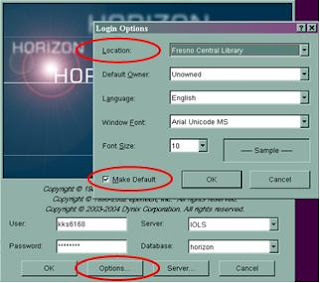
If you recently moved to a new branch or work at more than on branch, you can change your default Horizon location yourself. Here's how:
- Click the Horizon icon to open the program.
- Enter your 3+4 User and Password…but don’t click OK yet. Instead, click the Options button.
- Select new Location from the drop down list.
- Click Make Default checkbox –then press OK.
rev. 8/2017
Sometimes the barcode of 1000000000 will get assigned to an item as it is linked. The staff person linking the item fails to enter a complete barcode and Horizon fills in the missing digits automatically. Horizon knows every item barcode starts with a 1 and has 10 digits. So if I’m linking an item and leave the barcode field blank then press Enter, Horizon reads the Enter as a “0”, adds a 1 in front and fills in the remaining digits with 0s. The only way to avoid this happening is to watch the screen while you are linking items to make sure the correct barcode is assigned to the item.
This same type of phenomenon can occur anytime a partial barcode is entered while linking an item, as well as checking an item in or out. For example, if a 2 is entered, the resulting barcode is 1000000002; if 107 is entered, the resulting barcode is 1000000107; etc.
At Check Out
If a 1000000000 barcode exists (or a variation), it is then possible this item will appear on a patron’s record during check out –if the staff person presses Enter in the barcode field of the CKO window or enters a partial barcode that matches an existing barcode in the database.
If this happens to you, simply check in the 1000000000 item to remove it from the patron’s account.
At Check In
It could also happen at Check In. If you hit Enter at Check In without entering a barcode, a transit slip could be generated that sends the item in hand to whatever branch owns the 1000000000 item. This means the item in hand is *not* checked in. In fact, it's probably still checked out to the patron. Pay attention to the routing slip. If it lists the 1000000000 barcode, don't put it in the shipment. Rescan the item.
Whenever you notice a bad barcode, notify the branch that owns that item. They should pull the item and correct the barcode in Horizon. If you are not sure who to contact at that branch, email Kathleen Smith and she'll take care of it. That will clear up the problem until another item is accidentally assigned an erroneous barcode number. Again, the best way to reduce the probability of this happening is to watch the screen while you are linking items.
rev. 2/2018

